
OrionKine Lab 1.0.0 · Windows desktop applicationRead the manual ↗
ROBOTICS, MADE EXPLORABLE

Your robot.
Your motion.
Your lab.

Turn link lengths and joint angles into a robot you can see, program and understand. A practical robotics workspace for Windows, from your first FK calculation to a custom arm project.

3–6 DOF armsFK + IKInteractive Kinematics Lab

Built for students, makers and the robots on your workbench.

ORIONKINE LAB / MOTION WORKSPACEv1.0.0
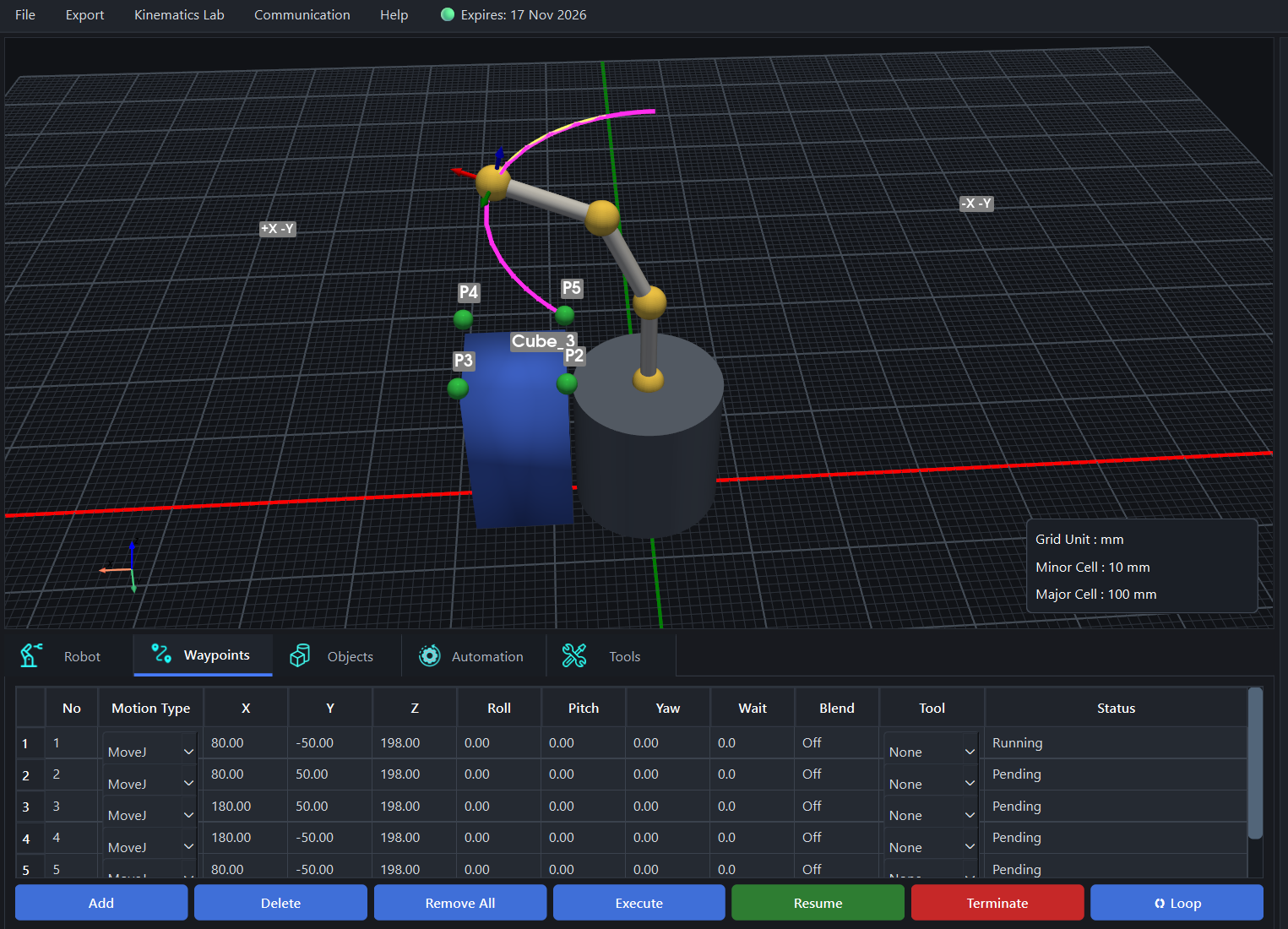
OrionKine Lab showing a three-joint robotic arm, a workspace object, waypoint markers and a magenta motion trajectory.
Real application capture Click to enlarge ↗
FROM JOINT ANGLE TO TOOL POSEConfigure · Simulate · UnderstandJ₁ → TCP
3–6 DOFCustom robot geometry
MoveJ / L / CThree motion types
TCP orientationControl within your limits
FK + IKSee the maths in motion
01 / THE DESKTOP WORKSPACE

A workspace built
around your robot.

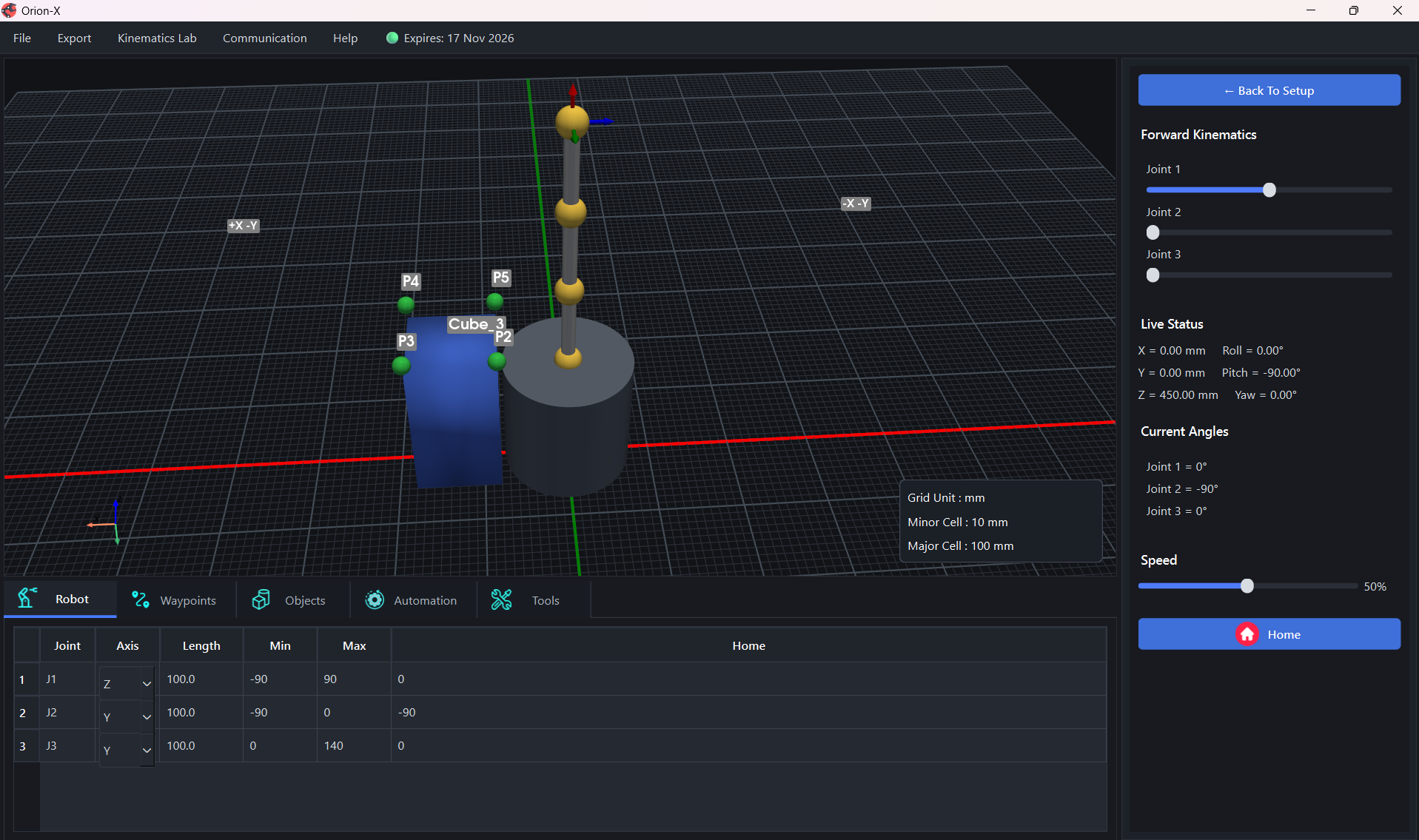
Set the geometry. Add objects. Teach a sequence. Inspect the robot and its coordinates as you work.

Application captures from an earlier build. Window titles and theme details may differ from the current release.

PROGRAM · TCP ORIENTATION CONTROL

Teach a sequence, then inspect it.

Create MoveJ, MoveL and MoveC waypoints with wait times and tool actions. Select a waypoint and press O for DOF-aware TCP orientation and a live robot-shadow preview. Orientation control supports MoveJ (4–6 DOF) and MoveL (5–6 DOF), within the robot’s limits. MoveC remains position-only.
BUILD A WORKSPACE

Work from objects, not just coordinates.

Add objects and generate waypoints from their geometry with an approach offset. Review reachability before running the sequence.

CONNECT

Explore hardware at your own pace.

Use serial communication, a built-in serial monitor and Arduino servo reference firmware. A matching external serial command can trigger a prepared sequence.

02 / TCP ORIENTATION CONTROL

Place the tool.
Choose the approach.

Select a waypoint in the desktop table and press O. Set the supported orientation axes and inspect a live robot-shadow preview before saving.

  1. 01Select a waypoint row
  2. 02Press O to edit orientation
  3. 03Preview, save and execute
Read the orientation chapter ↗
EXPLORE SUPPORT BY ROBOTFEATURE GUIDE

Three orientation controls.

Use roll, pitch and yaw targets for supported MoveJ and MoveL waypoints.

MoveJMoveL

Support depends on the robot geometry, joint limits and reachable poses. A reachable endpoint does not guarantee a valid straight-line path. MoveC is position-only.

03 / KINEMATICS LAB

See the movement.
Follow the maths.

The desktop Lab reads your current robot’s geometry and pose. Explore the equations with a synchronized 2D view, one concept at a time.

WHERE IS EACH JOINT?

Understand the robot’s structure.

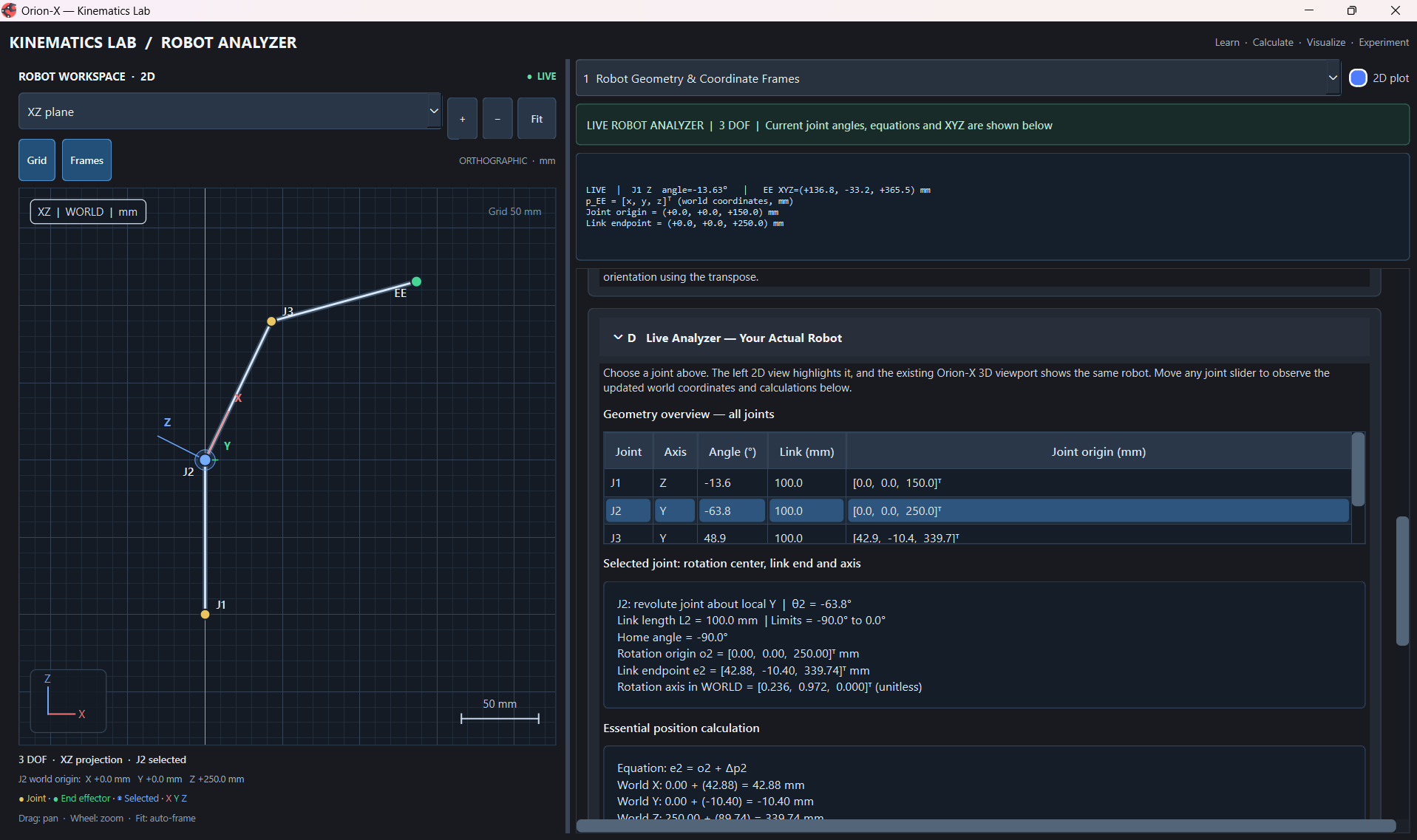
Select a joint and inspect its rotation axis, angle, origin and link endpoint. Compare local and world coordinates in the XY, XZ or YZ projection.

Look for in the desktop Lab

Joint selection · Coordinate frames · Live geometry values

Read the Lab guide ↗
Kinematics Lab Module 1 showing a joint coordinate plot, geometry table and selected-joint calculations.
ACTUAL APPLICATION / MODULE 1

Joint geometry and coordinate frames. Click the image to inspect the calculations.

The desktop Lab is a learning environment. Its IK solutions and path previews do not move the main robot or send motor commands.

04 / HANDS-ON FORWARD KINEMATICS

Two joints.
One useful experiment.

Change an angle and watch the tool position update. This simplified browser example introduces forward kinematics before you open the desktop Lab.

Educational browser demonstration · 2-link planar arm
XY PLANE / mm
Two-link arm forward kinematics demonstrationA planar robot with two 120 millimetre links. Use the labelled joint angle sliders to change its pose.+X+Y0Grid: 50 mm · Links: 120 + 120 mmJ2Tool
TOOL X103.92 mm
TOOL Y180.00 mm
ANGLE CONVENTION

θ₂ is relative to link 1

CHANGE THE POSE

Angles are in degrees. Each link is 120 mm. Positive angles rotate counterclockwise from +X.

Follow the calculation

For link lengths L₁ = L₂ = 120 mm:

x = L₁ cos θ₁ + L₂ cos(θ₁ + θ₂)y = L₁ sin θ₁ + L₂ sin(θ₁ + θ₂)

This is a planar teaching example, not the OrionKine Lab desktop simulator. The desktop application supports configurable 3–6 DOF arms.

05 / FROM SETUP TO SEQUENCE

Build a small task.
Understand every step.

Use an object-based waypoint exercise to connect robot geometry, reachability and motion programming.

  1. 01

    Configure the arm

    Set axes, link lengths and joint limits to describe your robot.

  2. 02

    Place an object

    Add a workspace object, select it and press W to generate waypoints with an approach offset.

  3. 03

    Teach the sequence

    Review reachable points. Choose motion types, wait times and gripper, suction or magnet actions.

  4. 04

    Preview and execute

    Inspect the trajectory and run the sequence. Compare the executed trail with your intended motion.

What version 1.0 does

Checks robot-to-base and robot-to-object collisions and stops waypoint execution with a warning. Link-to-link self-collision checking is not enabled. Automatic avoidance and path replanning are not included.

Decorative line drawing of a joint actuator and shaftJOINT ACTUATOR / ILLUSTRATIVE STUDY
06 / BEYOND THE SCREEN

A place for your
hardware ideas.

Start in simulation. When your controller is ready, explore serial communication with a compatible custom arm.

01

Inspect the commandsUse the serial monitor to understand what is being exchanged.

02

Build from a referenceArduino servo reference firmware provides a starting point for compatible setups.

03

Validate your own controllerMotor drivers, firmware, limits and physical safety remain specific to your robot.

07 / INSTALLATION & ACTIVATION

Download. Activate.
Create your first robot.

Installation and activation are separate. A subscription license is required to use the desktop application.

01

Install OrionKine Lab

Download the Windows 64-bit installer from the official GitHub release, run it and launch the application.

02

Request activation

Select a plan in the activation wizard, complete UPI payment and email the generated request file to support. Payment verification and license generation are manual.

03

Load your license

Support emails your signed license after verification. Load it in the application, create a robot and open the Kinematics Lab.

08 / SUBSCRIPTIONS

Choose your time.
The workspace stays the same.

All plans include the simulator and Kinematics Lab. Choose a duration, then activate through the desktop application.

MONTHLY
₹199
1 month access
  • Custom robot creation
  • Motion and waypoint programming
  • All five Kinematics Lab modules
  • License for one device
Download & activate
ANNUAL
₹1,499
1 year access
  • All monthly features
  • One-year subscription term
  • All five Kinematics Lab modules
  • License for one device
Download & activate

Prices in INR. Payment takes place through the desktop application's manual UPI activation process. Renewals are available after the current license expires. Downloading the installer does not activate a subscription.

09 / WINDOWS DESKTOP

Your next robot
starts here.

Create a robot, explore a motion sequence and follow the maths in the Lab.

Windows 64-bit · Subscription required · Published installers on GitHub

Release notes & installer details ↗
10 / GOOD TO KNOW

A few practical
questions.

Need help with a setup or activation? Email OrionKine Lab support ↗

Is OrionKine Lab designed for learning robotics?+

Yes. OrionKine Lab is intended for education, research and development. It combines custom robotic arm simulation with a Kinematics Lab that connects geometry, equations and visible movement.

Do I need physical robot hardware?+

You can create robots, simulate waypoints and use the Kinematics Lab without physical hardware. Serial communication and Arduino reference firmware are available when you want to explore a compatible hardware setup.

What can I explore in Kinematics Lab?+

Five modules cover geometry and coordinate frames, rotations and transformations, forward kinematics, inverse kinematics, and motion trajectories. The Lab uses your current robot and provides educational previews without sending motor commands.

Does OrionKine Lab automatically avoid obstacles?+

The application checks robot-to-base and robot-to-object collisions and stops waypoint execution with a warning. Link-to-link self-collision checking, automatic obstacle avoidance and path replanning are not included.

How do I activate my subscription?+

Choose a plan in the activation wizard, make the UPI payment, enter its reference and attach payment proof. Generate the activation request and email it to orionkinelab.support@gmail.com. Support verifies the payment manually and sends a signed license for your device.

Can I use one license on multiple computers?+

A license is tied to the device for which it was issued. A different computer needs its own valid license. Renewals are available only after the current license expires.

Where are the manual and new releases?+

Read the user manual for the application workflow and feature details. Download published installers and read their notes on the official GitHub releases page.

Does this website take payments or connect to my Google account?+

No payment form or Google account sign-in is required on this website. Activation requests are handled through the desktop wizard and support email. The license-management Google integration is operated by OrionKine Lab support. See the privacy policy for details.

Application screenshot

↑